
What is "Related apps & spaces"?
In the Related Apps & Spaces section of a space, you can add links to apps or spaces that are related to that space. Adding links in the Related Apps & Spaces section lets users access the linked apps and spaces more quickly. The Related Apps & Spaces section is not available in guest spaces.
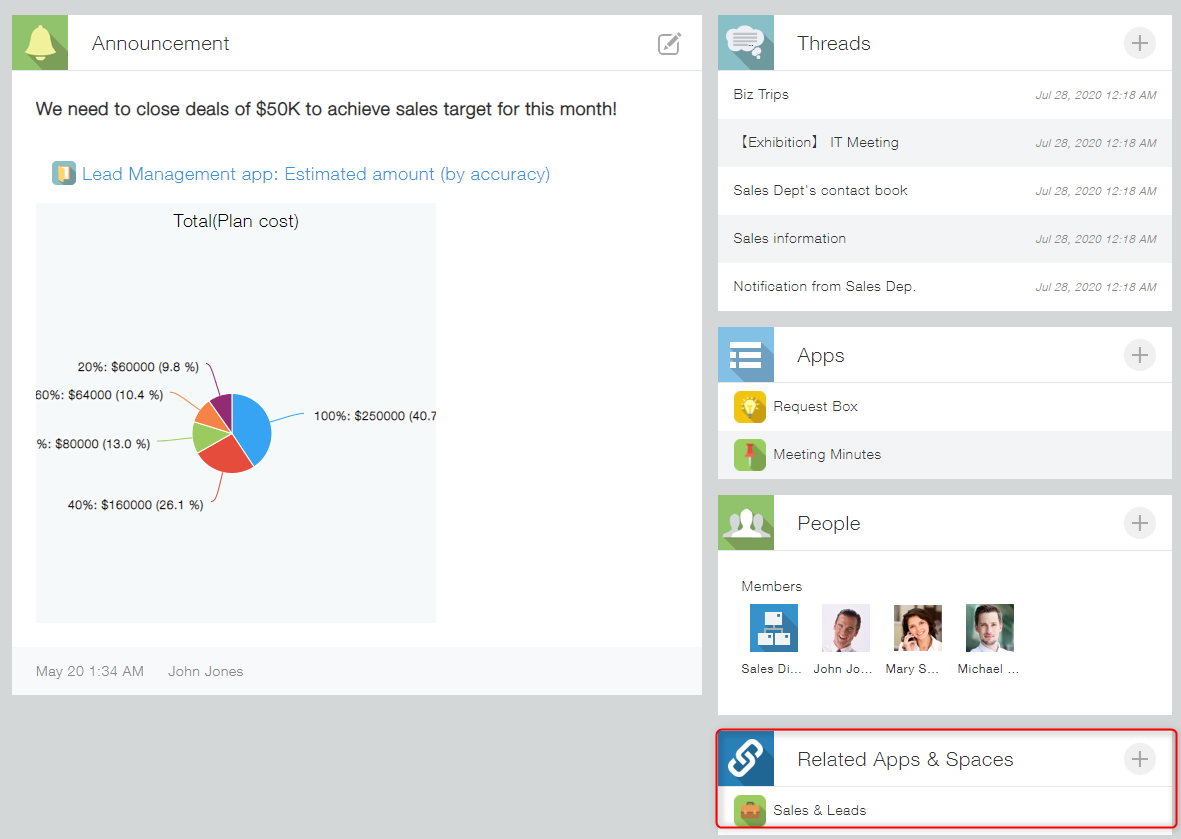
To add links to the Related Apps & Spaces section in a space, follow the steps below.
-
Open a space portal and perform one of the following actions.
- Click the Add related app & space icon (the plus sign-shaped icon in the Related Apps & Spaces section at the bottom left of the screen).
- Click the Options icon at the upper right of the screen, then click Manage Related Apps & Spaces
The "Manage Related Apps & Spaces" dialog will open.
-
Search and select the apps or spaces you want to add to the Related Apps & Spaces section.
You can specify what you want to search for by switching between Apps and Spaces using the drop-down list.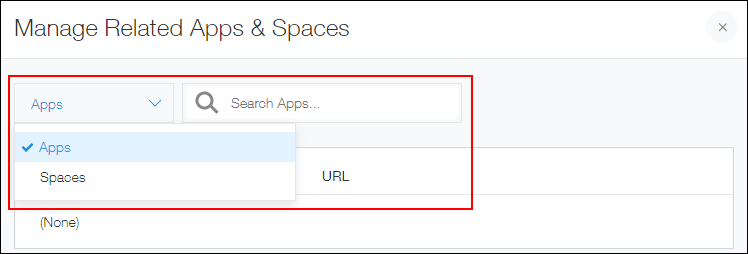
-
Click Save.
Your link has successfully been added to the Related Apps & Spaces section.
If you want to delete the link, open the "Manage Related Apps & Spaces" dialog as you did in step 1.
Next, click the Delete icon to the right of the link you want to delete. When you click Save, the link will be deleted from the Related Apps & Spaces section.