
Setting a default portal
This article explains how to set a default portal that will be initially displayed when users log in to Kintone.
A default portal can be set for each department.
Note that only portals created in addition to the original portal can be set as a default portal.
How a user's default portal is determined
The default portal displayed when a user logs in is determined by the following rules.
If a default portal is set for a user's priority department
When a default portal is set for a user's priority department, it will be displayed initially when they log in to Kintone.
Example:
- User A's priority department is the "Sales Department".
- The "Sales Portal" is set as the default portal of the "Sales Department".
In this case, the "Sales Portal" will be displayed when User A logs in.
If a default portal is not set for a user's priority department
When a default portal is not set for a user's priority department, the parent department's settings will be referenced.
If a default portal is set for a user's parent department
When a default portal is set for a user's parent department and the Include affiliated departments checkbox is selected, the settings for the parent department will be applied.
If there is a hierarchy of multiple parent departments that have default portals set, the settings of the parent department closest to the user's priority department will be applied.
Example:
- User B's priority department is "Sales Division 1".
- There is no default portal set for "Sales Division 1".
- The parent department "Sales Department" has the "Sales Portal" set as the default portal and its Include affiliated departments checkbox is selected.
- There is another parent department one level higher in the hierarchy that has the "Sales Management Portal" set as the default portal and the Include affiliated departments checkbox selected.
In this case, the "Sales Portal" (the default portal of the parent department closest to User B's priority department) will be displayed when User B first logs in.
If a user's parent department does not have a default portal set
When a default portal is not set for a user's priority department or its parent department, the original portal will initially be displayed when the user logs in.
Example:
- User C's priority department is "Sales Division 2".
- A default is not set for "Sales Division 2" or its parent department "Sales Department".
In this case, the original portal will initially be displayed when User C logs in.
If a user does not belong to any department
When a user does not belong to any department, their priority department is set as (None). In this case, the user has no department that can have a default portal set, so the original portal will initially be displayed when they log in.
Example:
- User D does not belong to any department.
- Their priority department is set as None.
In this case, the original portal will initially be displayed when User C logs in.
Steps
-
Click the Settings icon (the gear-shaped icon) on your portal, then click Portal management.

-
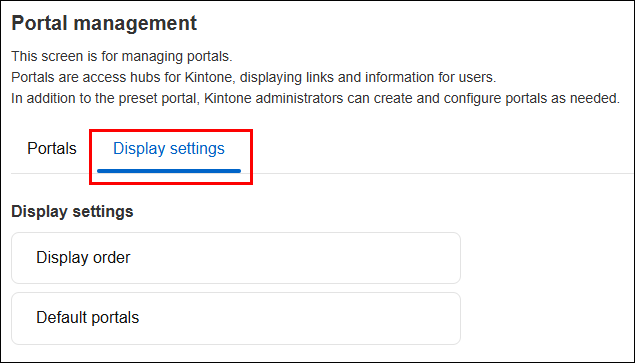
On the Portal management screen, click the Display settings tab.
-
Click Default portals.
-
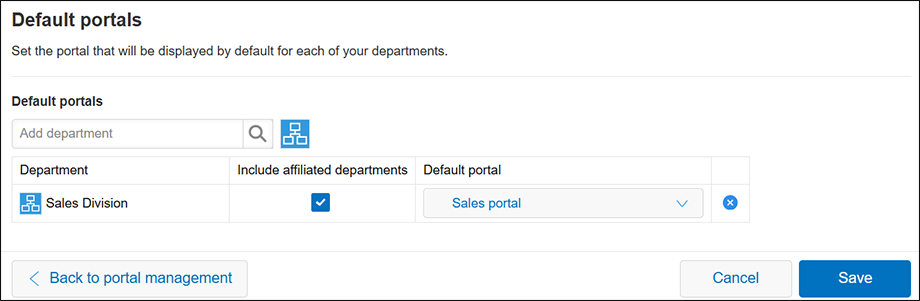
On the Default portals screen, select a department.
If the Include affiliated departments checkbox is selected for the department, its settings will also be applied to users who belong to departments underneath it. -
Select a portal from the Default portal drop-down list.
-
Click Save.